
Sign in to Pippin
Type your email and Pippin offers the ways your Org allows: a sign-in link, a passkey, Microsoft, or your Org's own identity provider.
Before you start
There is no Pippin password. Nothing to choose, nothing to rotate, nothing to leak.
Sign-in starts with your email address, because what Pippin can offer depends on who you are. Type it and the screen changes: an Org that requires its own identity provider gets one button, an Org that merely has one gets it alongside the rest, and everyone else gets a sign-in link sent to that address.
An account is never created by signing in. An address Pippin does not know is turned away rather than quietly given an Org of its own. If you are new, an Owner invites you first.
Steps
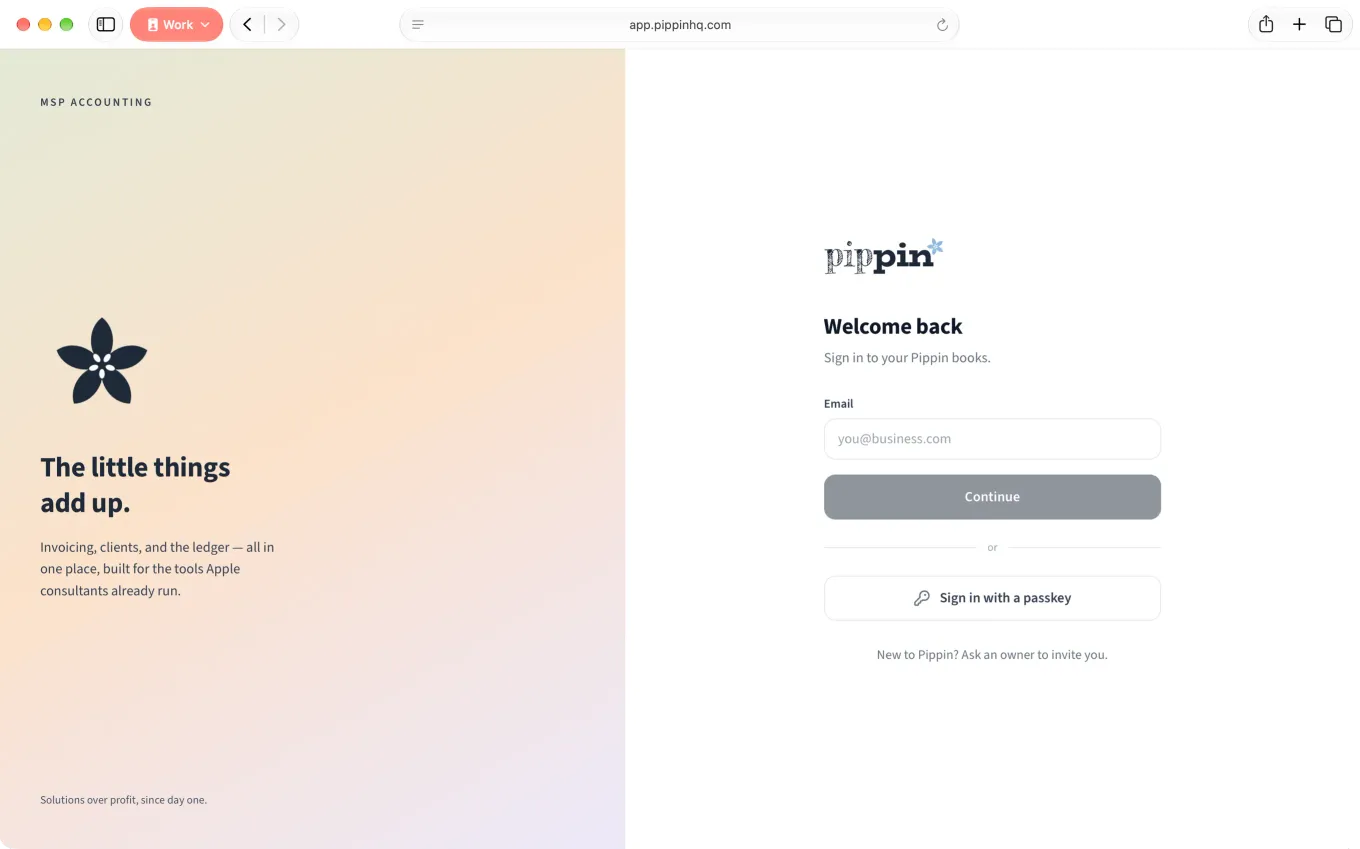
- Open your Org’s Pippin address. The screen asks for your email.
- Type it and choose Continue. Pippin looks up what your Org allows.
- Choose how to get in:
- Email me a sign-in link — a link arrives at that address and signs you in when you open it. Nothing to remember.
- Sign in with Microsoft — for a work account, if your Org has not required its own provider instead.
- Sign in with a passkey — Touch ID, Face ID, or a security key. This one is offered before you type anything, because a passkey already knows who you are.
- If your Org requires an identity provider, the only button is Continue with your domain. It takes you there and brings you straight back.
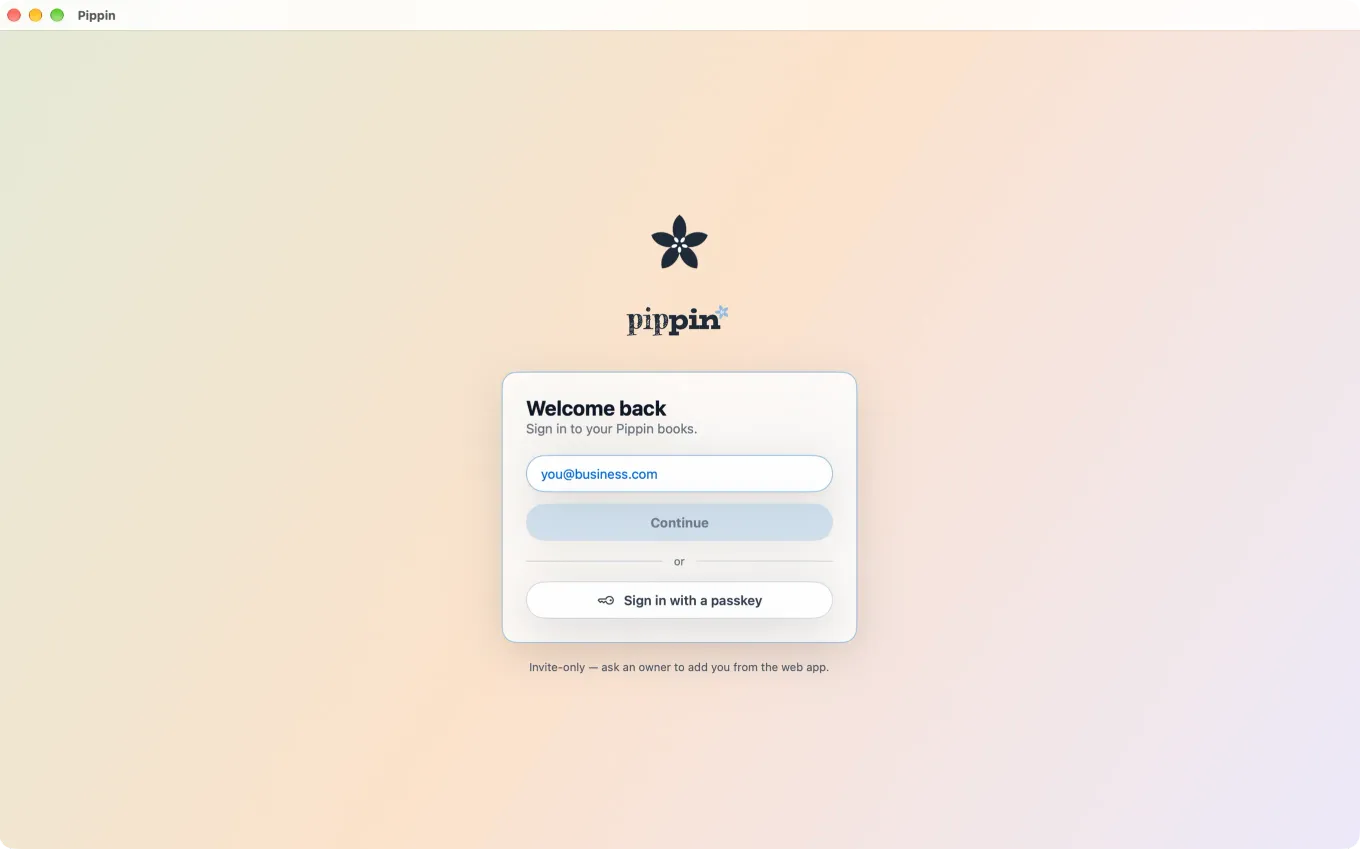
- Open Pippin from Applications.
- Sign in the same three ways the browser offers. Touch ID is the fastest if you have enrolled a passkey.
- The session is kept in the keychain, so this Mac will not ask again.
- Open Pippin and enter your email, or use Face ID or Touch ID if you have a passkey on this iPad.
- The sidebar afterwards shows only the sections your Role allows.
- Open Pippin and enter your email, or use Face ID if you have a passkey on this iPhone.
- The tabs are Dashboard, Invoices, Time and Banking. Everything else is under More.
Good to know
Signed in successfully and then refused everywhere? Your Org has adopted its own identity provider and you arrived some other way — with a passkey enrolled before the change, most often. Nothing is broken and nothing is lost: sign out and come back through your Org’s provider.
If your Org requires a provider and that provider is down, an Owner can still get in with a sign-in link. The option is on the sign-in screen, below the button — deliberately small, because it is there for the one person who needs it.
To enroll a passkey, or to see which devices already have one, open Settings › Your sign-in.